|
|
|
|
|
|
|
|
|
|
|
|
|
|
|
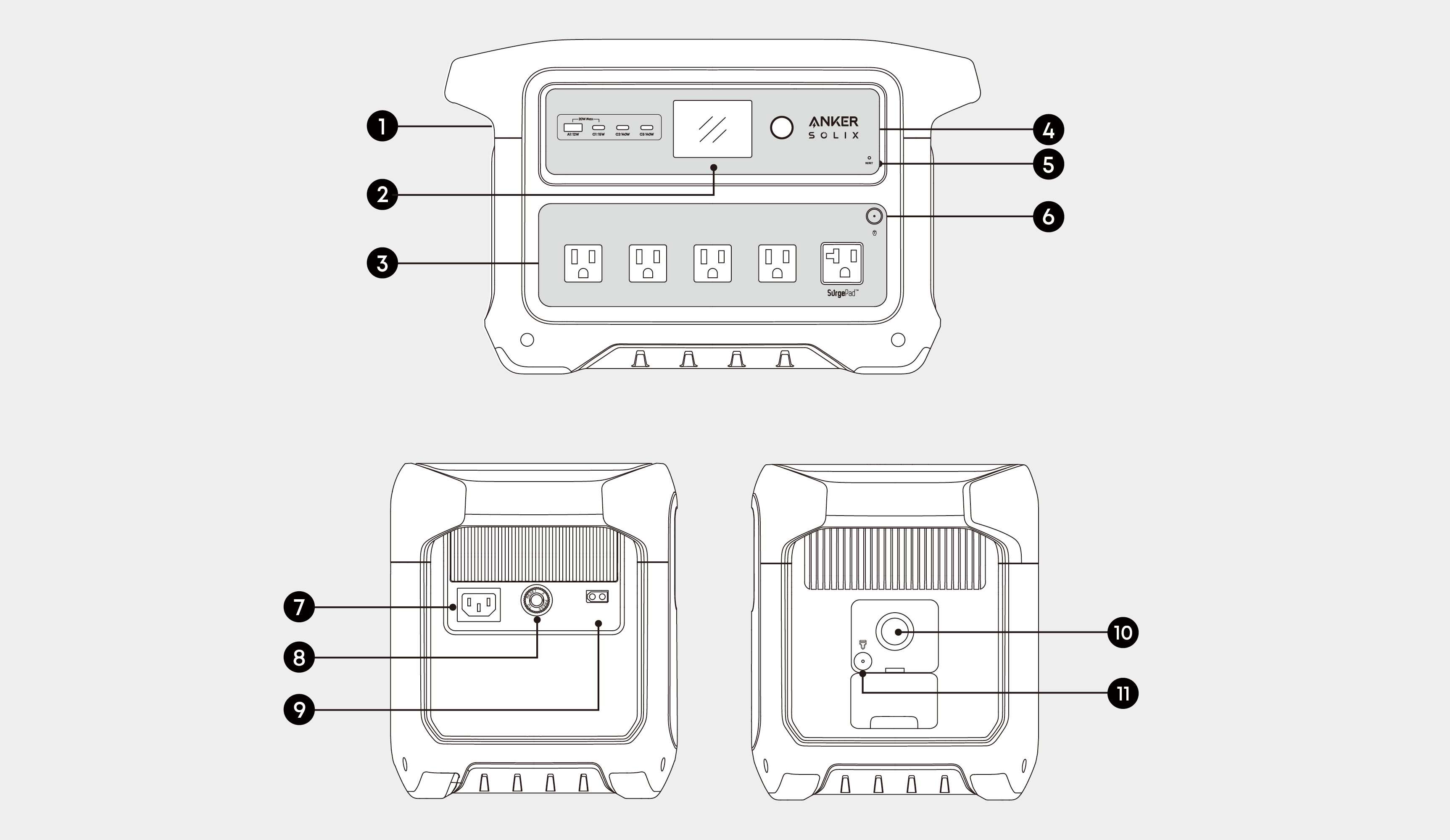
 USB Ports
 LCD Screen
  AC Output Ports
 Main Power Button
 Reset Hole
 AC Output Button
 AC Input Port
 Overload Protection Switch
 XT60i Input Port
 Car Socket
  Car Socket Button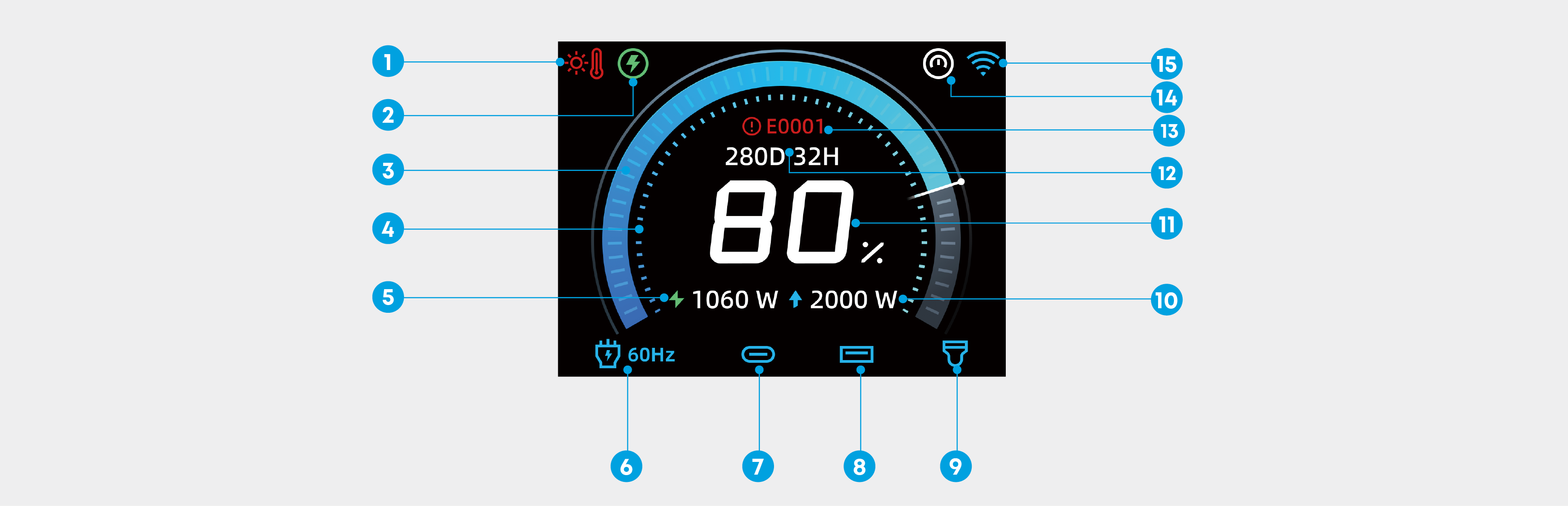
|
|
|
|
|
|
|
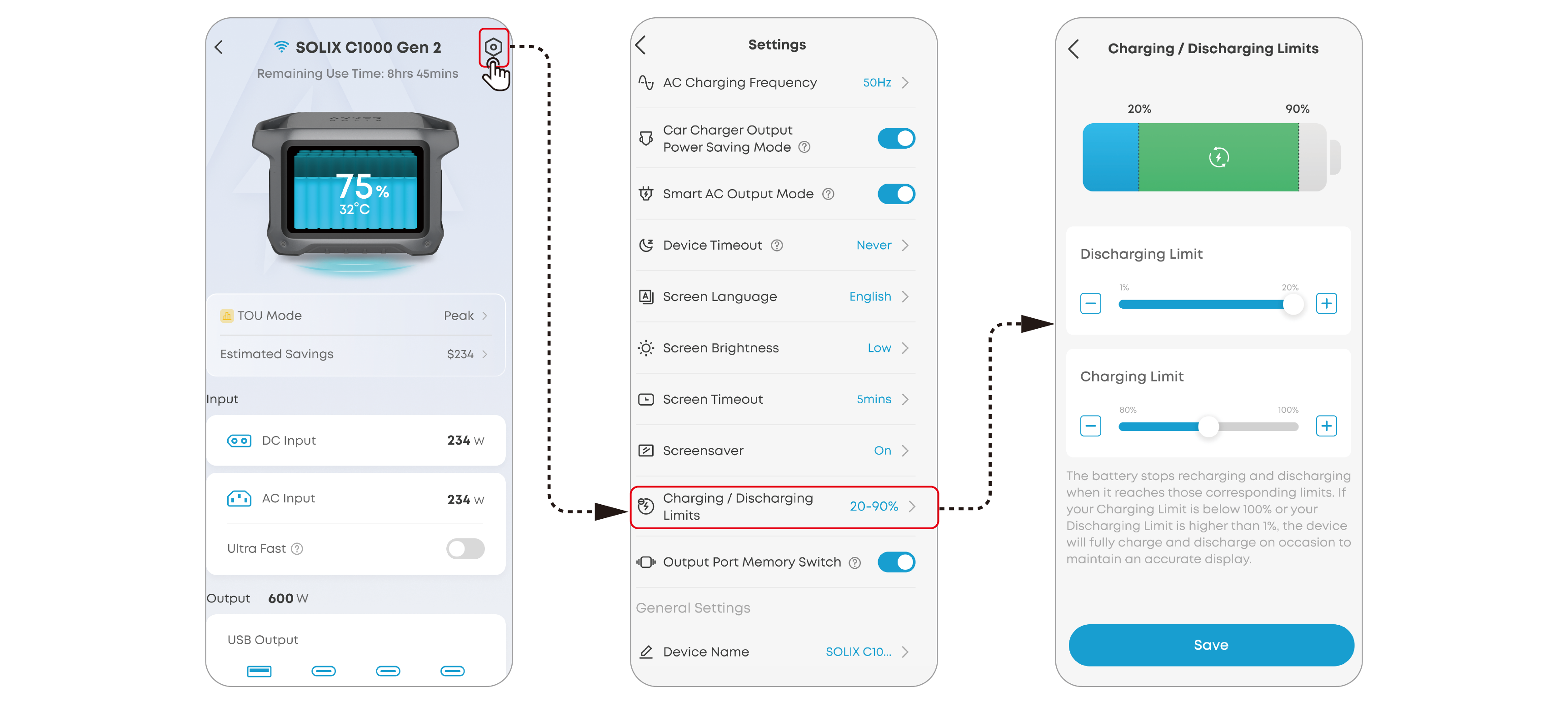
The lower limit can be set between 1% and 20%, while the upper limit can be set between 80% and 100% in the app. |
|
|
|
This icon lights up when the AC output button is pressed. |
|
|
|
|
|
This icon lights up when the car socket button is pressed. |
|
|
|
|
|
|
|
Please refer to the Appendix - Error Code section for detailed types and explanations of the error codes. |
|
If a charging / discharging limit is set, the power station will fully recharge to 100% after 720 hours of operation, regardless of mode or status. This calibrates the battery level. Once fully charged, the power station will return to the state or mode it was in prior to recharging. |
|
|
 High-Temperature / Low-Temperature Alert
 When this icon appears, stop using the power station and let it cool down until the icon disappears.
 When this icon appears, stop using the power station until the icon disappears.
 Backup Mode
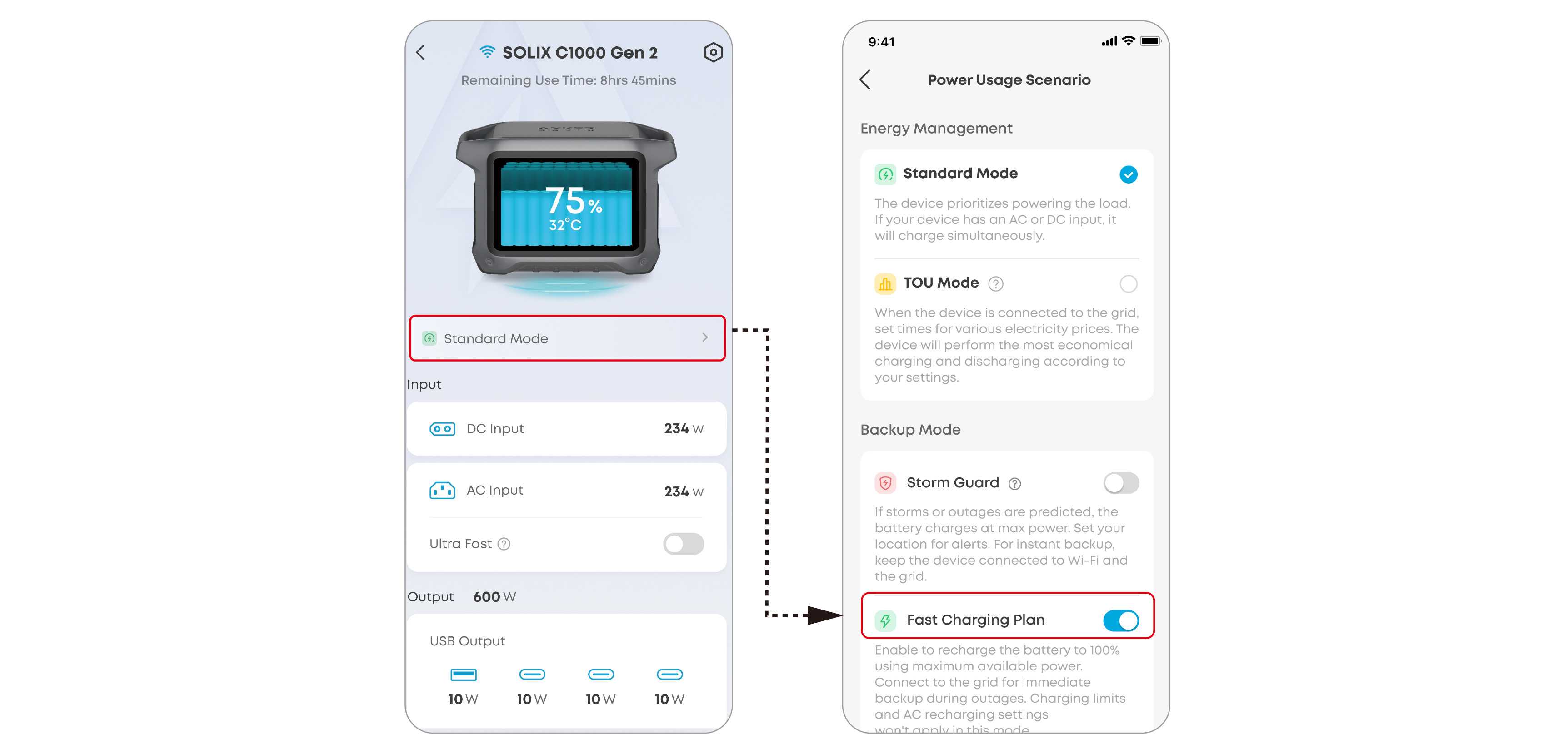
 Fast Charging Plan is enabled and the battery is currently charging.
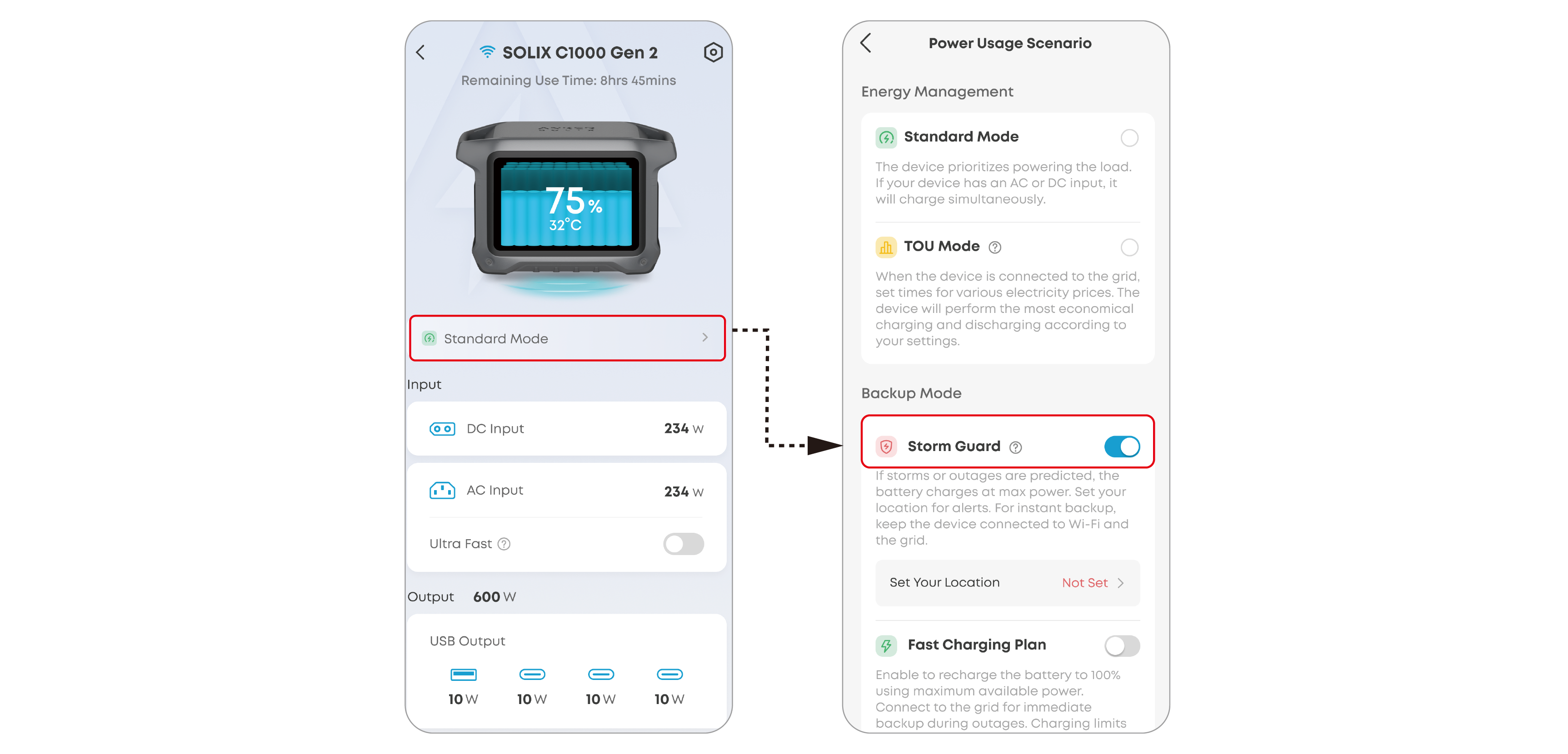
 Storm Guard is enabled and the battery is currently charging.
 Battery Level Ring
 Charging / Discharging Limit
 Current Input Power
 AC Charge Frequency
 USB-C Output Port
 USB-A Output Port
 DC Output Port
 Current Output Power
 Battery Level
 Estimated Time to Charge / Discharge
 Error Code
 Automatic Correction of Battery Level
 Wi-Fi / Bluetooth
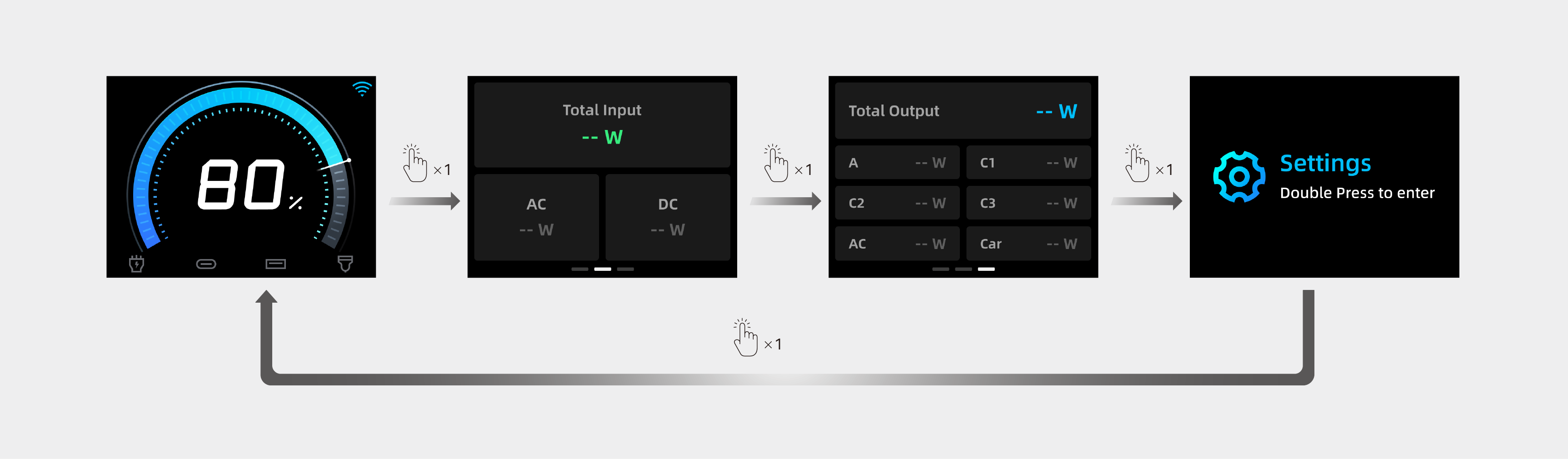
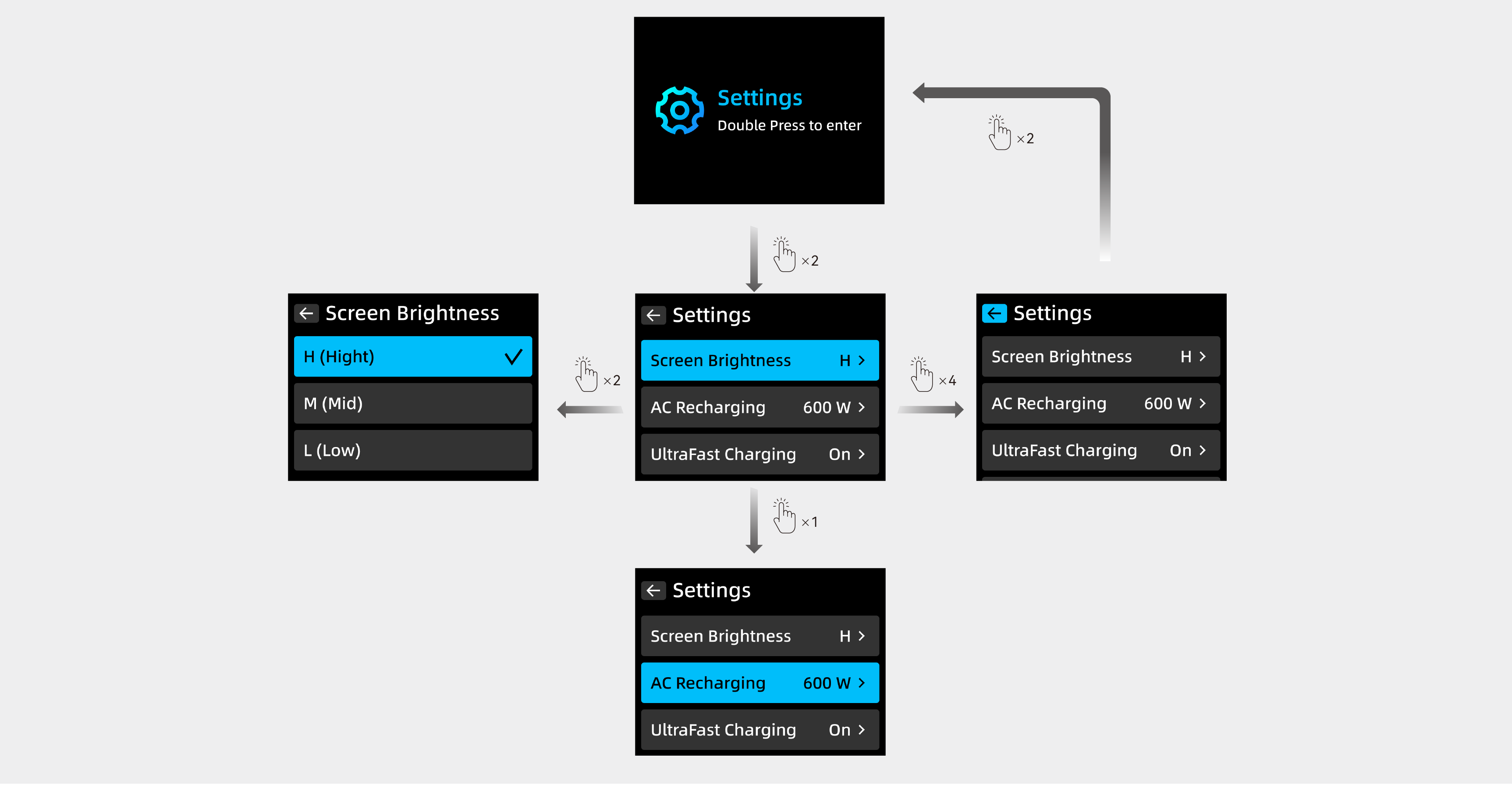
• Turn On Screen: Press the main power button once.
• Switch Interface/Option: Press the main power button once.
• Confirm Selection: Press the main power button twice.
• Auto Return: If there is no operation on the interface for 20 seconds, it will automatically return to the main interface.
|
Screen Display |
Status |
|
|
No charging or recharging. |
|
|
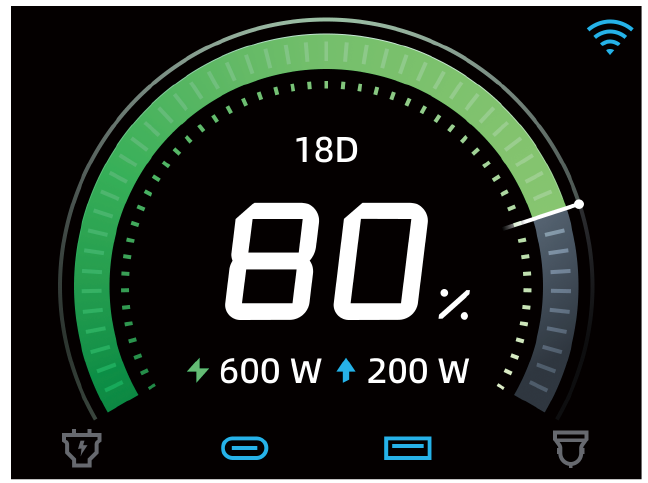
Charging the devices. *Upper limit: 90% / Lower limit: 10% |
|
|
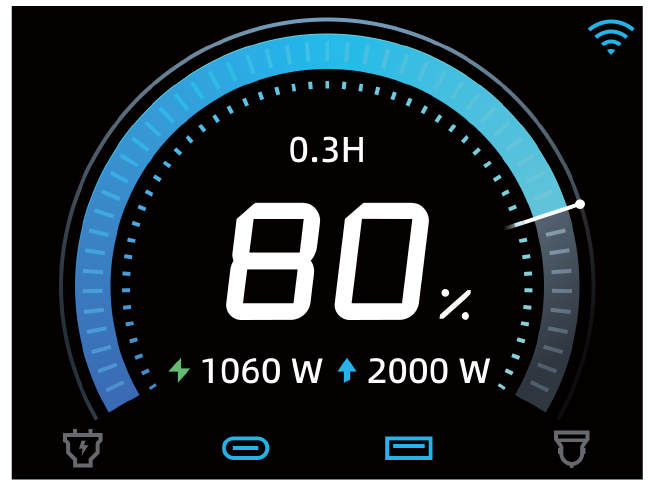
Recharging the power station. *Upper limit: 90% / Lower limit: 10% |
|
|
Recharging specifications during simultaneous charging and recharging. |
|
|
Charging specifications during simultaneous charging and recharging. |
|
|
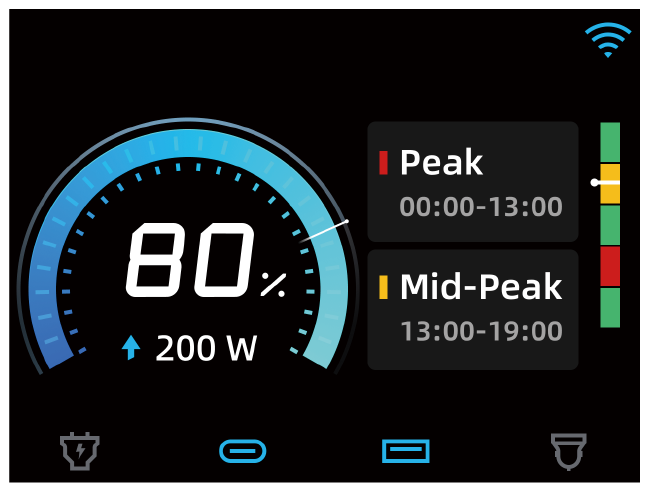
Time of use mode. |
|
|
UltraFast recharging. |
|
|
Silent recharging. *Input power is under 600W. |
|
|
Solar recharging. |
|
|
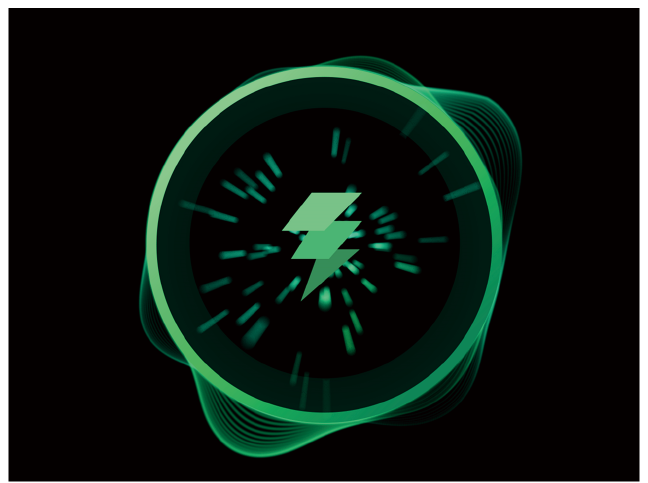
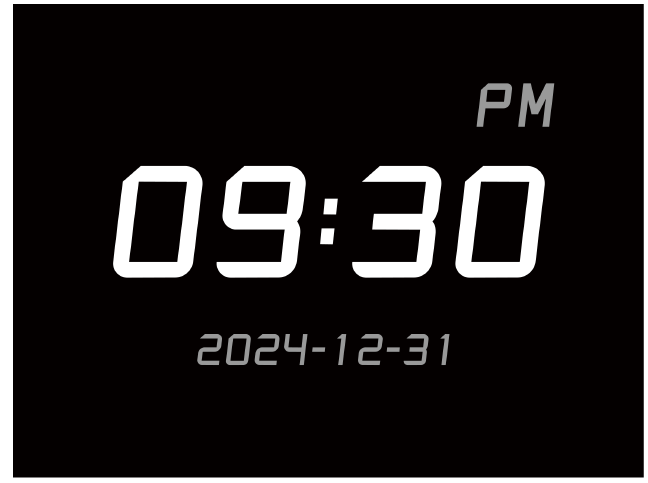
Screensaver. Note: • You can set the screensaver's clock style in the app to be 12-hour or 24-hour, or you can select another screen saver. • Display only when recharging. • The display brightness defaults to 5% and can be adjusted in the app to a maximum brightness of 20%. |
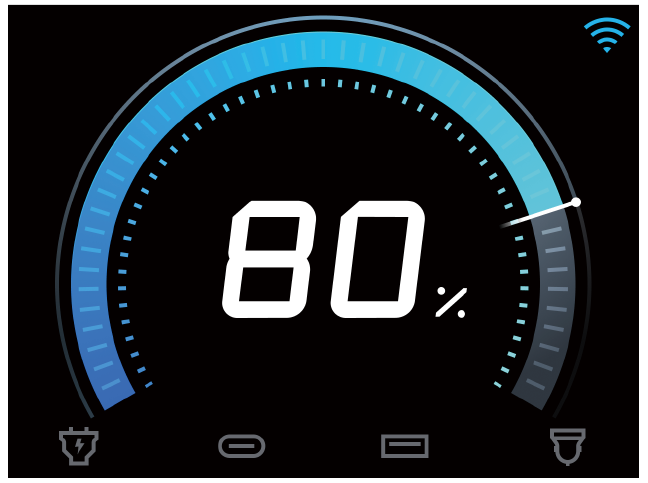
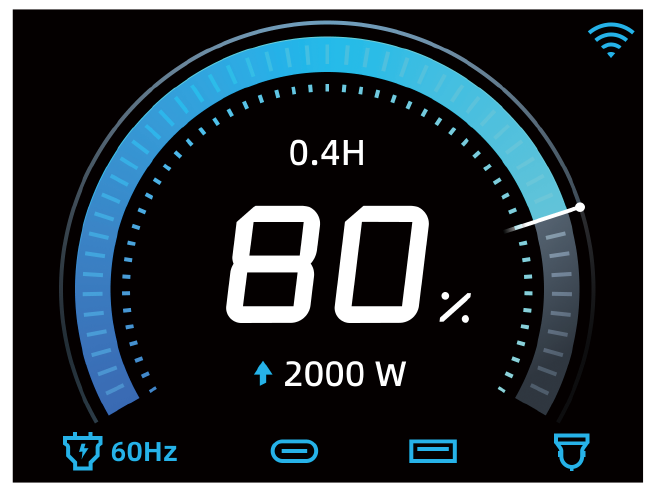
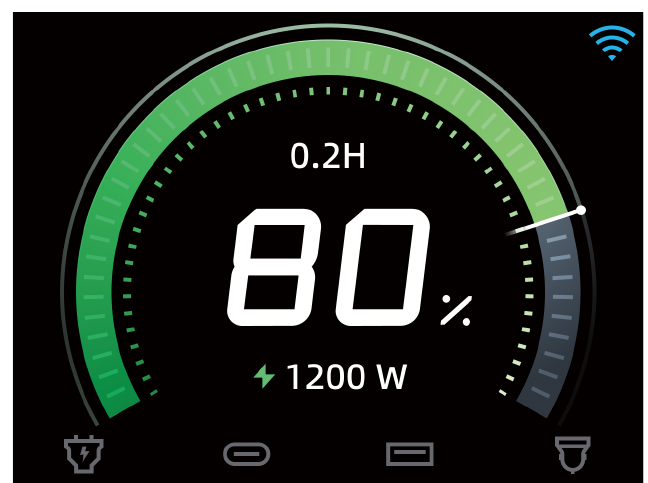


When your power station only has 1% battery remaining,  will appear to remind you to recharge.
*For safety and optimal performance, use the original cable only.
Standard Recharging
Recharge the power station by connecting to a wall outlet with the AC charging cable. The maximum input power of the AC port is 1,200W.
UltraFast Recharging
The UltraFast feature can be enabled or disabled via the Anker app, it allows the power station to be recharged at a maximum input power of 1,600W.
|
|
• Recharging at a normal speed can best protect the battery, so we recommend using the UltraFast feature only when necessary. • Every time you unplug the AC charging cable, the UltraFast recharging feature will automatically be disabled, and you need to enable it in the app. |


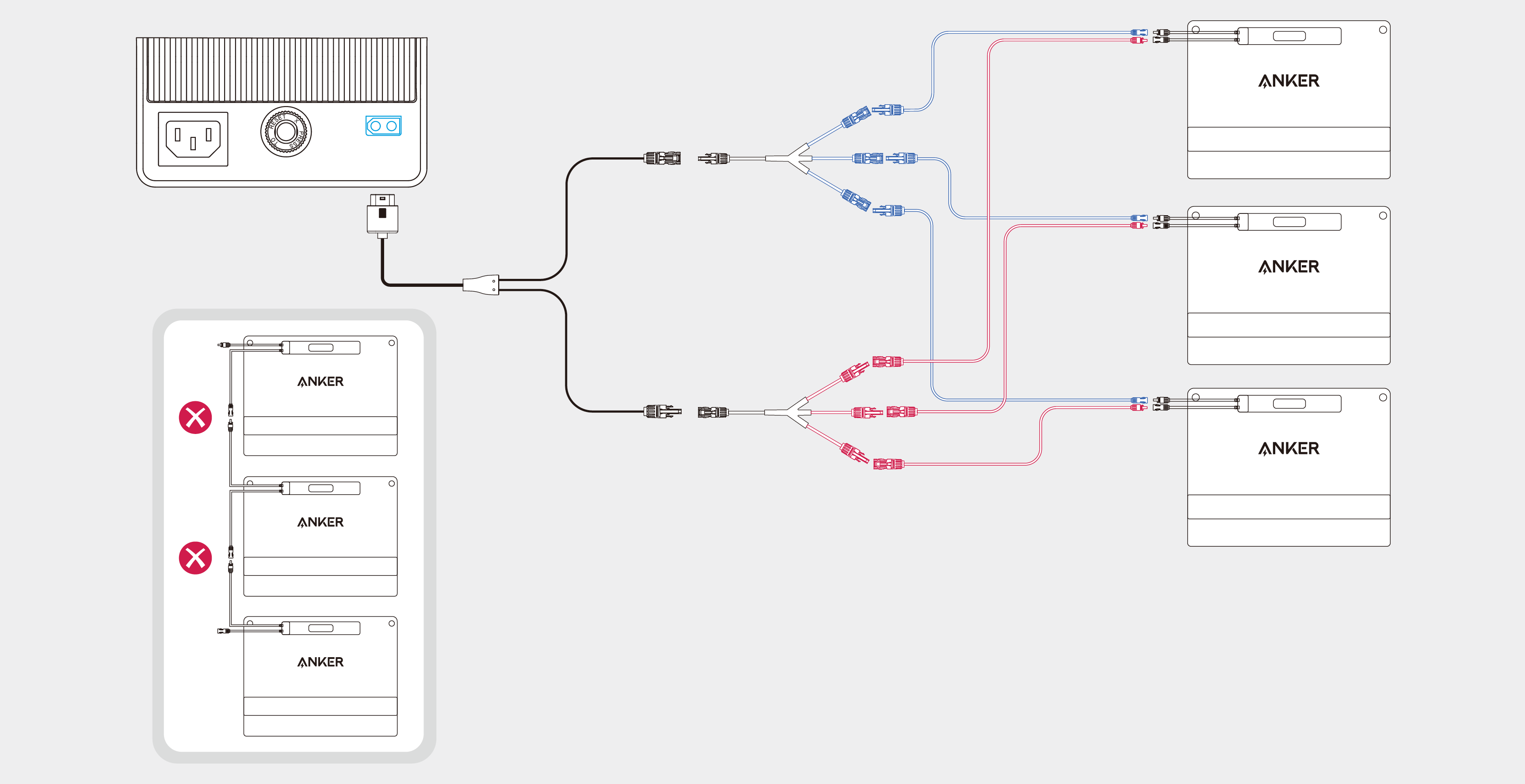
Recharge the power station by connecting the solar panel to the XT60i input port. The maximum input power is 600W.
|
|
• Ensure that the total open-circuit voltage (Voc) of the solar panels is within 60V, and the total short-circuit current (Isc) is within 15A. • To avoid damaging the product, it is recommended to connect the solar panel in parallel. • For better compatibility with the power station, it is recommended to use Anker solar panels and PV connectors (sold separately). |
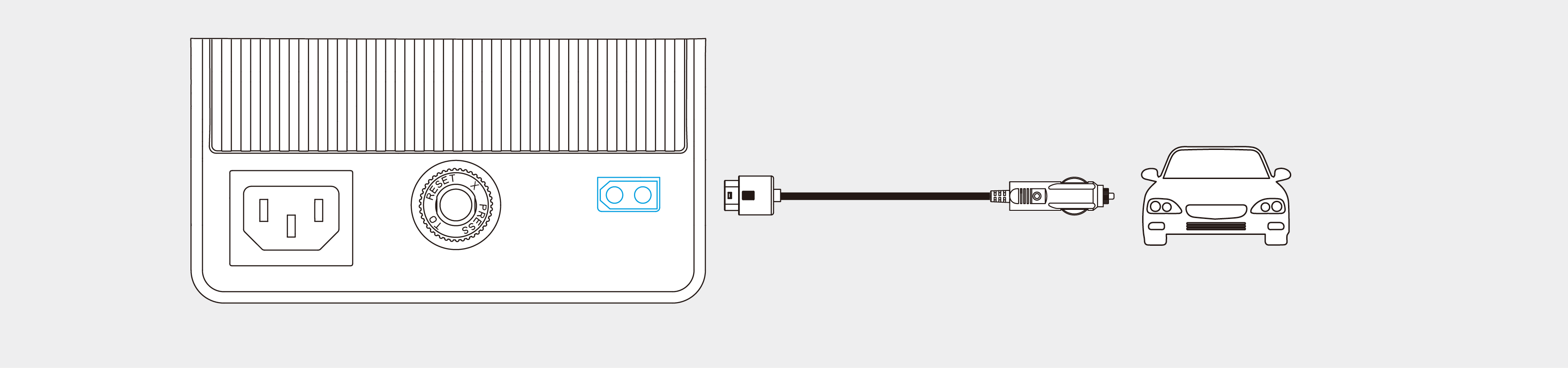
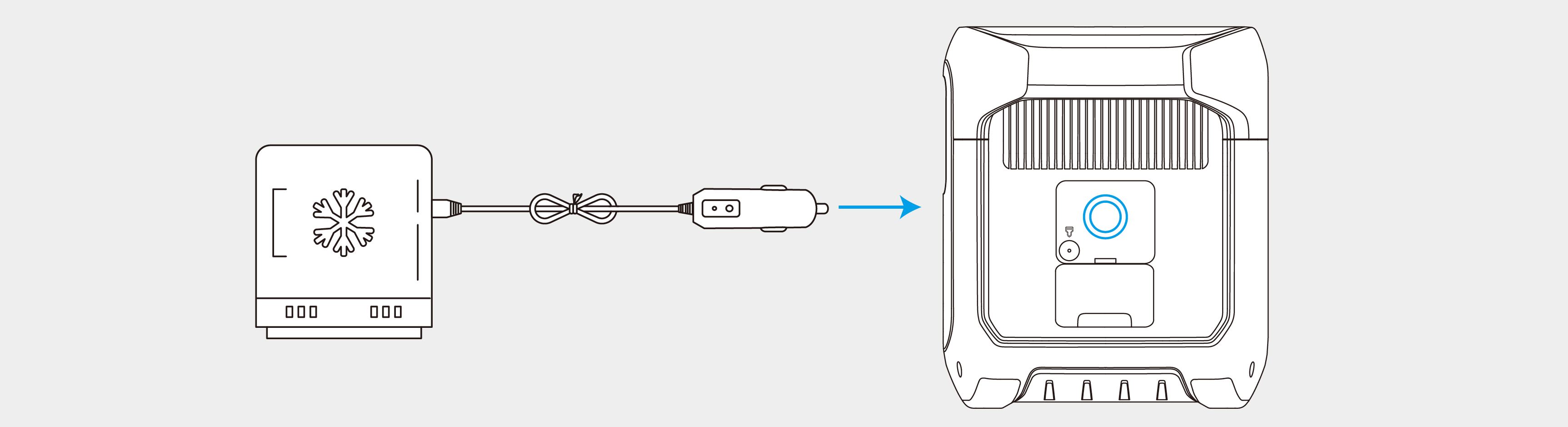
Recharge the power station by connecting to a car's output port with the car charging cable.
|
|
• The car charging cable needs to be purchased separately. |
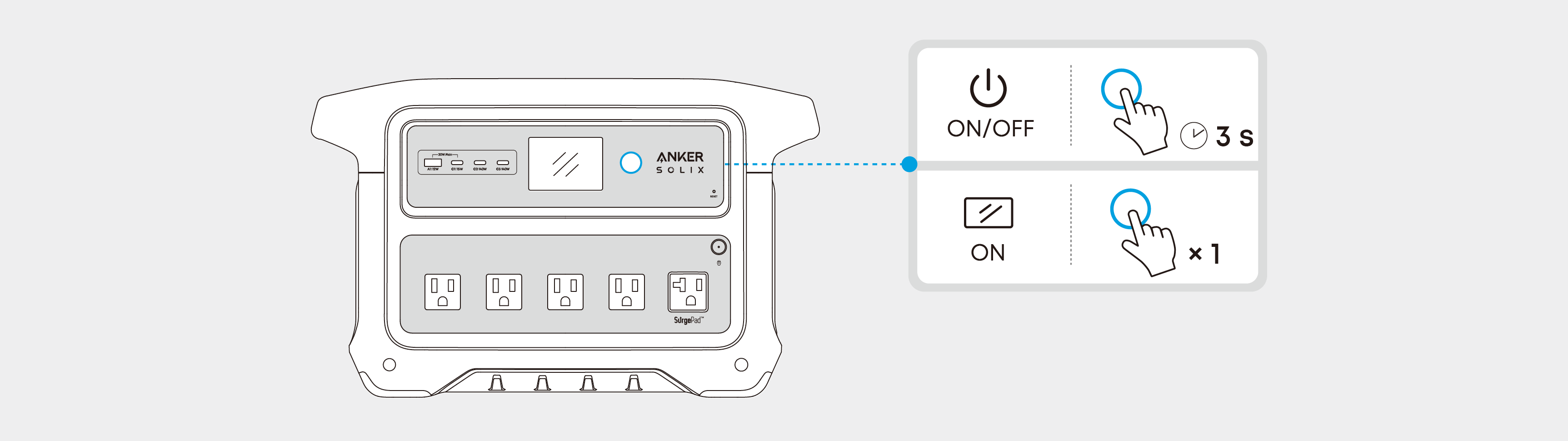
Turning On / Off the Power Station
Press the main power button for 3 seconds to turn the power station on or off. When the "Battery Level" icon shows on the LCD screen, your power station is ready to charge devices.
|
|
• Press the main power button once to turn the screen on. The screen will be turned off automatically after 30 seconds of lighting up. The auto-off time can be set in the Anker app. • The default standby duration of the power station is 12 hours, which can be set in the Anker app. |
Press the AC output button and connect your devices with the AC output ports.

Connect your devices to USB ports.

Press the car socket button and connect your devices to the car socket.
Uninterruptible Power Supply (UPS)
To use the UPS feature, connect your power station to a wall outlet with the provided AC charging cable, then press the AC output button and connect your devices via the AC output ports. UPS supports 10 ms.
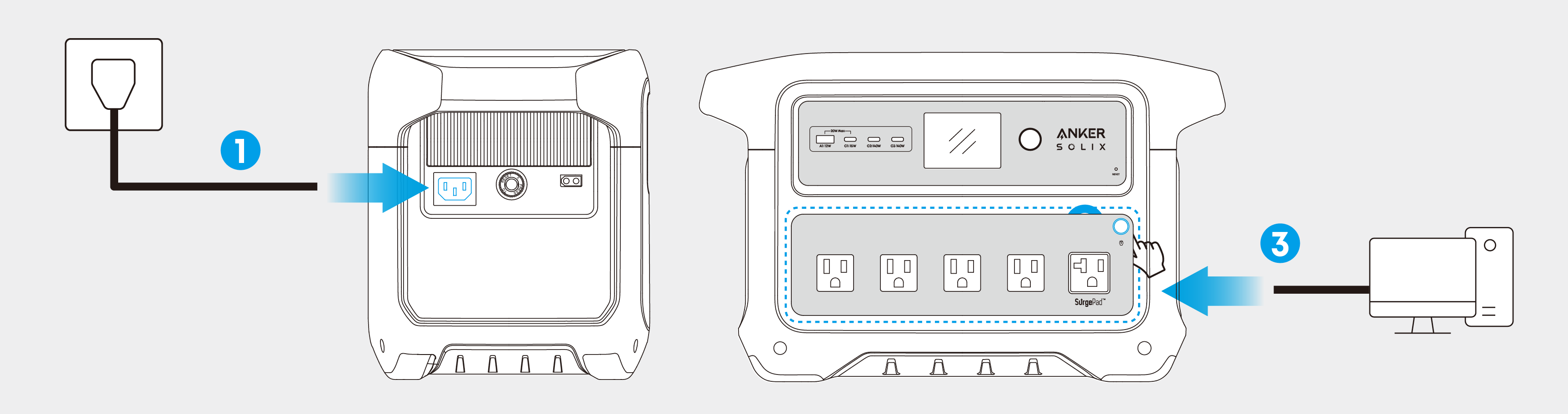
The power station supports the SurgePad™ feature for up to 2,400W AC output.
• SurgePad™ automatically turns on when the total output exceeds the rated output, allowing the power station to deliver rated power to high-wattage devices.
• SurgePad™ does not function in bypass mode (when the power station is being charged with the AC output on).
• SurgePad™ works better with devices that generate heat, but does not support precision instruments and other devices that have voltage protection or strict voltage requirements. To see if SurgePad™ works with your high-wattage devices, try powering them with the power station.

|
|
• You can remotely control your power station using the Anker app. • The information below may not list all of the features available on the Anker app. To ensure access to new and improved features, download updated versions of the app as they become available. |
1. Download the Anker app from the App Store (iOS devices) or Google Play (Android devices), or by scanning the QR code.

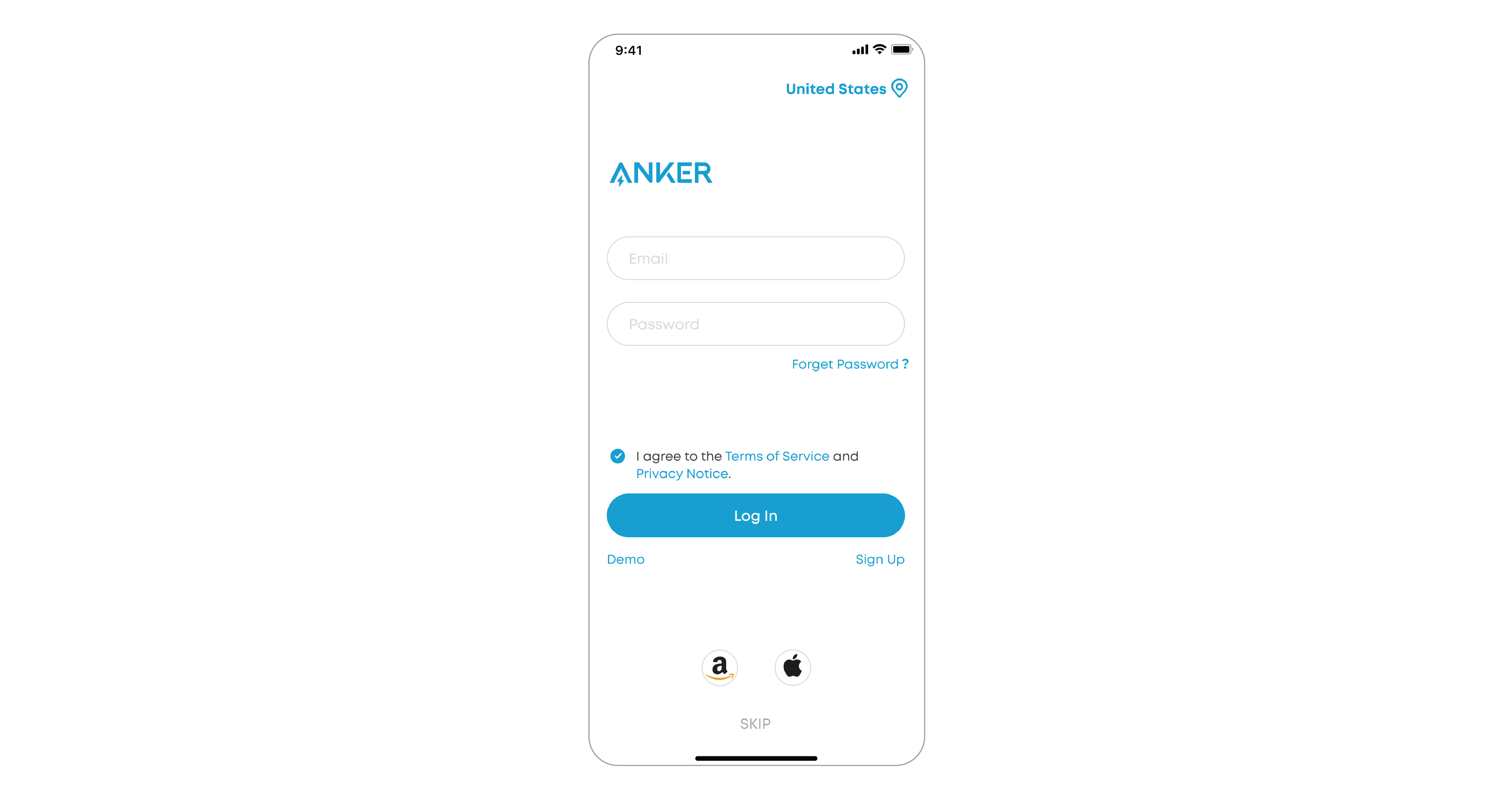
2. Sign in or create an account. Please be reminded that the country or region must match where you live. An incorrect country or region may cause the device connection to fail.
3. Follow the in-app instructions to add the power station and complete the setup.
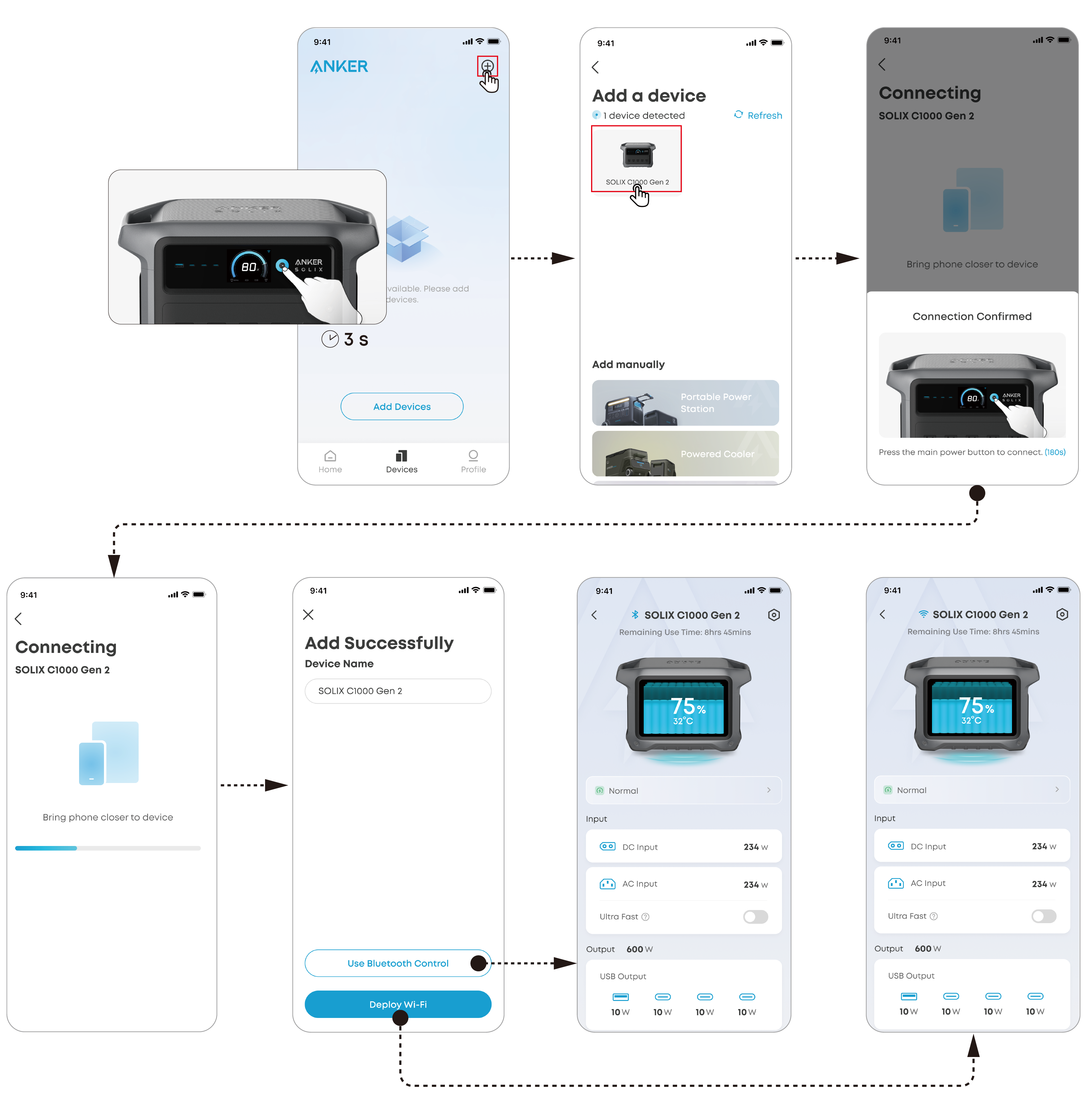
You will be informed once a new firmware version is detected when you connect the power station to the app. During the update, ensure the battery level of the power station is above 5% and connected to Wi-Fi or Bluetooth.
The upper charging limit and lower discharging limit of the power station can be set in the app. When recharging the power station, once the selected upper charging limit is reached, the recharging will automatically stop. When charging a device by power station, it will stop once the selected lower discharging limit is reached. This feature allows the battery to improve performance.
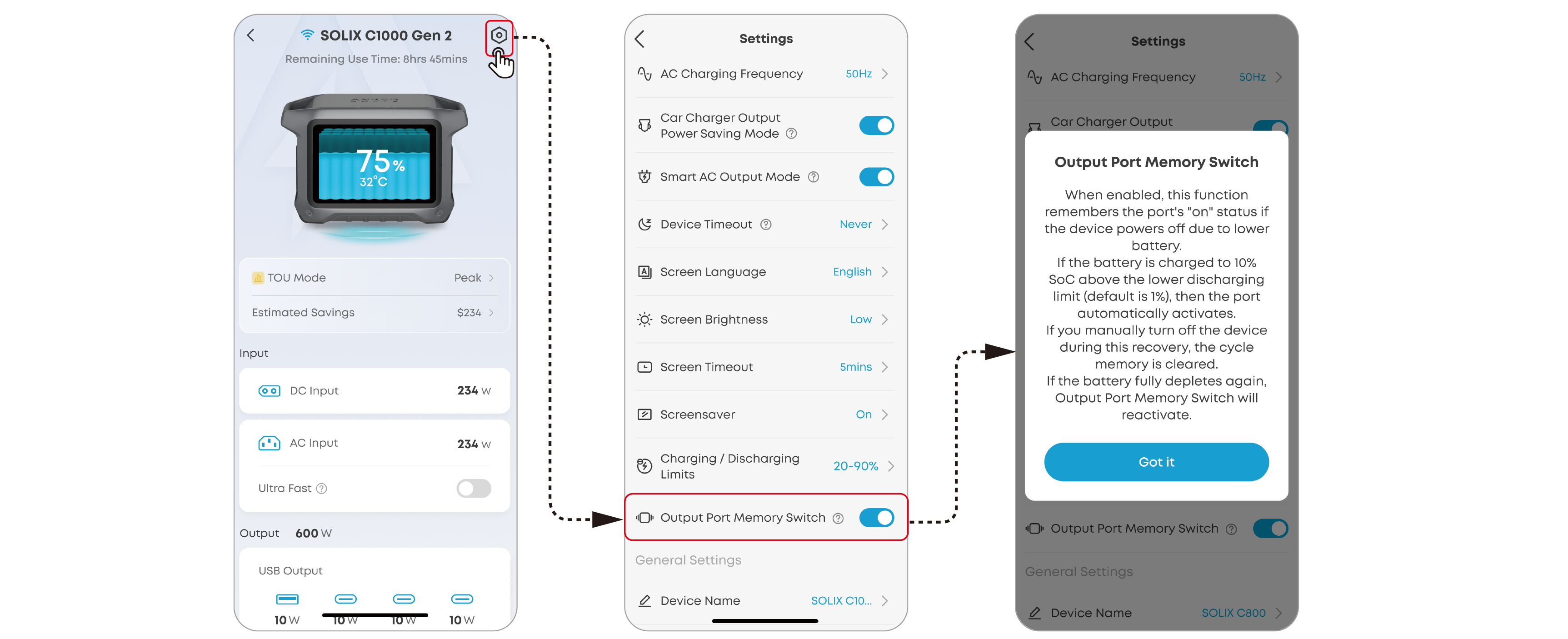
The output port memory switch can be turned on or off in the app. .
On: If the power station is powered off due to the low battery level, it will automatically memorize the on/off status of AC and DC output ports before powering off. When the power station is charged to the SOC lower limit plus 10%, the on/off status of AC and DC output ports will be restored.
Off: The power station will not automatically memorize the on/off status of AC and DC output ports.
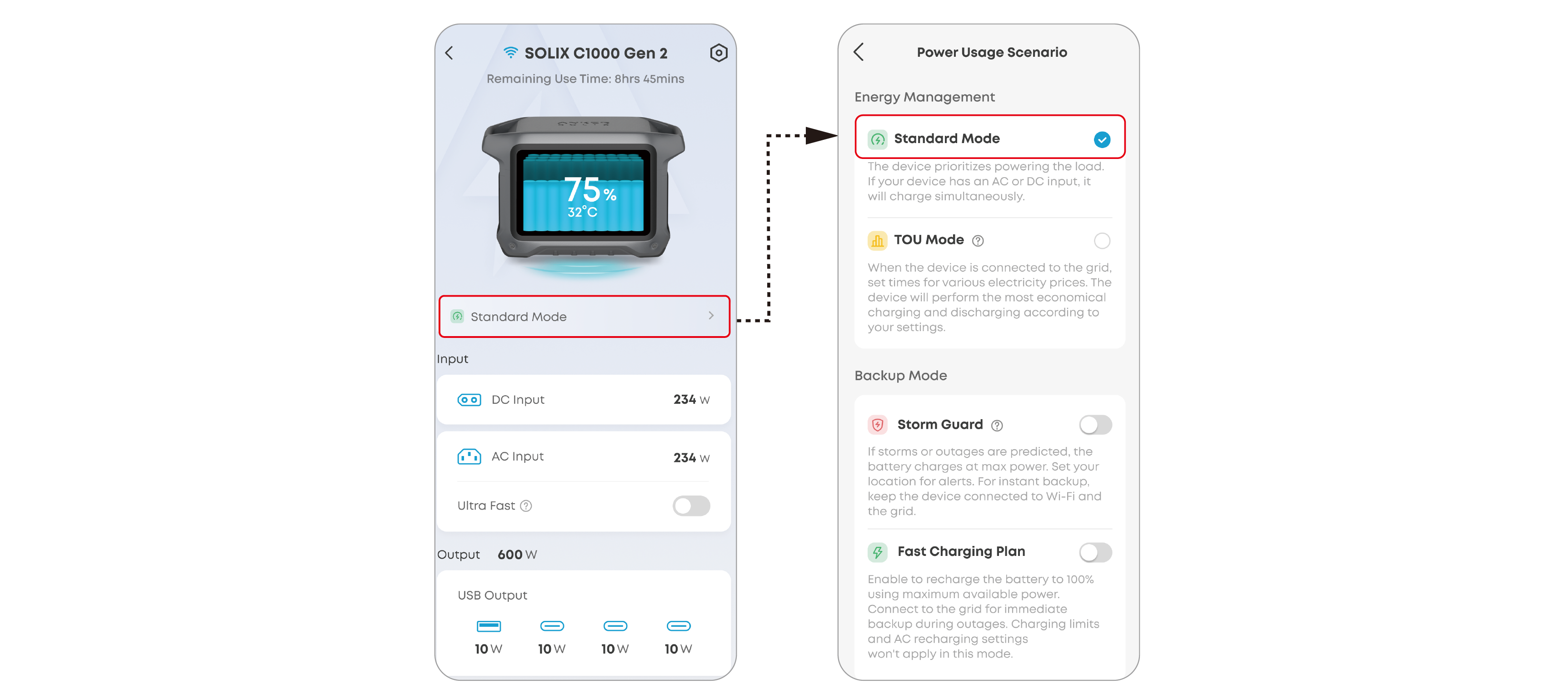
If no other mode is selected, the default is standard mode.
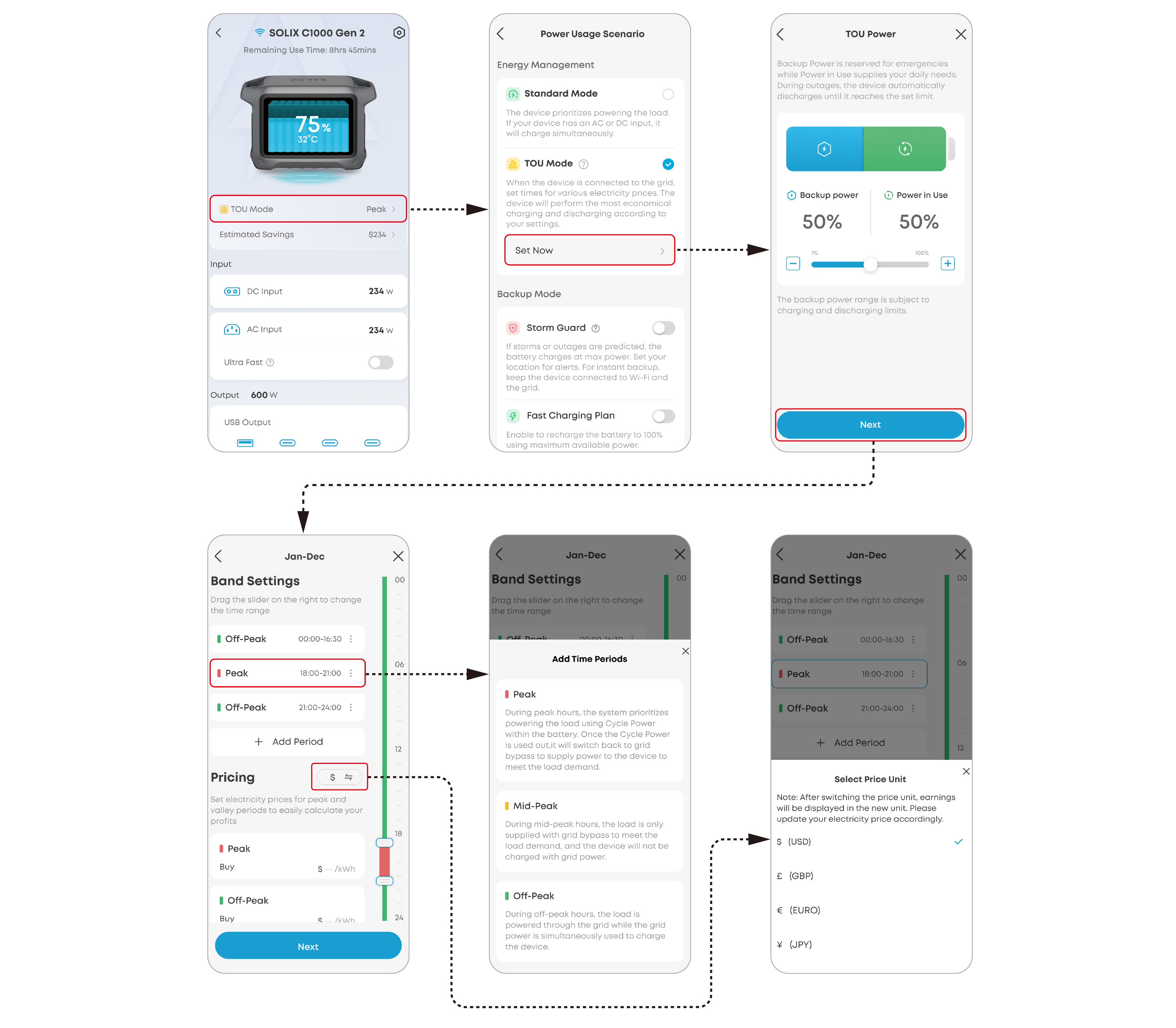
TOU mode saves your electricity costs by automatically scheduling charging and discharging based on fixed time periods and power rates. Set your own peak and off-peak times to optimize household energy use.
TOU Mode cannot be used with UltraFast Recharging simultaneously.
Requirement
Keep the power station connected to Wi-Fi and the grid.
Time Periods
|
Off-Peak Period |
Features: • Electricity rates are at their lowest. • This period typically occurs at night or early morning when demand is low. Operation: • The battery is charged only during this period. • Both solar power and grid power can be used to charge the battery. • The battery supplies power only to DC devices. • The grid supplies power directly to AC devices (bypass mode). |
|
Mid-Peak Period |
Features: • Electricity rates are moderate. • This period usually happens during early evening or midday when demand is average. Operation: • The battery neither charges nor discharges to AC devices. • The battery supplies power only to DC devices. • The grid supplies power directly to AC devices (bypass mode). |
|
Peak Period |
Features: • Electricity rates are highest. • This period is usually during daytime hours when demand is high. Operation: • The battery only discharges; it does not charge during this period. • The battery supplies power to both AC and DC devices. • After the battery is depleted, the grid supplies power directly to AC devices (bypass mode). |
Backup mode ensures your power station is always ready for unexpected power outages. In this mode, normal charging limits and AC recharging settings are not applicable. The system prioritizes keeping the battery fully charged for emergency use. To guarantee instant backup, keep your power station connected to Wi-Fi.
When a severe weather alert is issued for your area, the battery will automatically charge at full speed. To receive alerts, set your location in the app.
Fully charge the battery using the maximum available power.
1. What is the maximum power output of the AC output ports?
The AC output ports can deliver a maximum of 2,000W rated power to connected devices.
2: What should I do when using a DC input to charge the power station?
1) Use Anker original wiring to achieve better charging performance. Please note that the XT60i input port supports 11V to 60V input voltage. When the input voltage is between 11V and 28V, the maximum input current is 8.2A. When the input voltage is between 28V and 60V, the maximum input current is 14.5A, and the maximum input power is 600W.
2) When charging with multiple solar panels, ensure that each solar panel is connected in parallel, and the input voltage is less than or equal to 60V, otherwise the power supply may be damaged.
3: Can the USB-C ports charge the power station (input only), or are they output only?
The USB-C ports support output only.
4: What should I do when AC recharging fails?
If AC recharging does not work, check if the overload protection switch is turned on. If it is on, press to reset and then continue recharging.

5: Why is the power station not working after it hasn't been used for a long time?
If the power station is stored at a low capacity for a long time, lithium batteries will self-consume power which may lead to a quick discharge. This often leads to poor conductivity and a reduced battery lifespan that causes the battery not to work.
6: How should I store and maintain the power station?
To store your portable power station, please make sure that you:
1) Turn off all outputs when not in use to avoid battery power loss.
2) Store in a dry and cool area.
3) Check battery capacity each week. If the battery level is below 30%, charge to 100%.
4) If the power station will not be used for an extended period, fully charge it to 100% at least once every three months.
7: Can solar charging and AC charging be performed simultaneously?
Yes. When solar and AC charging are performed at the same time, the power station prioritizes maximizing the use of solar energy for charging, and the remaining charging capacity is supplemented by AC charging.
8: Why did USB ports shut off automatically?
To reduce power consumption and prolong the usage time, when power station detects that the USB output power is less than 1W for a long time, it will determine that your device is fully charged and turn off the USB output automatically. To restart the output, just plug and unplug the USB cable again.
9: Why can't my device work with the power station's AC output?
Some devices require a neutral-ground bond to function properly. The power station uses a floating ground design, so you'll need to purchase a ground neutral plug. Simply plug the ground neutral plug into one of the AC outlets on the power station, and your device will work as expected.
|
Capacity |
1,024Wh |
|
AC Input Power (Charging) |
1,200W Max |
|
AC Input Power (Bypass Mode) |
1,800W Max |
|
AC Input Power (UltraFast Charging) |
1,600W Max |
|
Solar Panel Input |
11-28V |
|
Car Charger Output |
12V |
|
AC Output Power |
120V |
|
USB-A Output |
5V |
|
USB-C 1 Output |
5V |
|
USB-A and USB-C1 Total |
20W Max |
|
USB-C 2 Output |
5V |
|
USB-C 3 Output |
5V |
|
UPS |
10 ms |
|
Discharging Temperature |
-4°F to 104°F / -20°C to 40°C |
|
Charging Temperature |
32°F to 104°F / 0°C to 40°C |
|
Size |
384 × 208 × 244 mm / 15.12 × 8.19 × 9.61" |
|
Net Weight |
11.3 kg / 24.9 lb |

Default Exposed Network Interfaces and Services
Bluetooth Low Energy (BLE) Status: When the equipment is not yet connected to a network, it will automatically enable BLE broadcasting and activate BLE services to provide Bluetooth network configuration capabilities.
Note: During the BLE configuration process, ensure your network environment is stable and follow the instructions to complete the setup.
|
Code |
Problem |
Solution |
|
E0003 |
The voltage of the USB-A port is above 5.7V or below 3.8V. |
Plug in the device connected to the USB-A port again, or short press the car socket button. |
|
E0008 |
The charging current for the device connected to the 15W USB-C port exceeds 3.8A. |
Plug in the device connected to the 15W USB-C port again, or short press the car socket button. |
|
E0009 |
Overloads or short circuits in connected devices and cables cause the output to shut down. |
Disconnect, then plug in devices connected to USB-C ports. |
|
E0010 |
Overloads or short circuits in connected devices and cables cause the output to shut down. |
Disconnect, then plug in devices connected to USB-C ports. |
|
E0014 |
The voltage of the car socket is above 14.4V or below 10.4V. |
Press the car socket button after 30 seconds. |
|
E0027 |
The charging temperature of the BMS exceeds 136.4°F / 58°C. |
Stop using the power station until its temperature is below 131°F / 55°C. |
|
E0028 |
The charging temperature of the BMS is below 35.6°F / 2°C |
Stop using the power station until its temperature is above 37.4°F / 3°C. |
|
E0032 |
The discharging temperature of the BMS exceeds 145.4°F / 63°C. |
Stop using the power station until its temperature is below 140°F / 60°C. |
|
E0033 |
The discharging temperature of the BMS is below -2.2°F / -19°C. |
Stop using the power station until its temperature is above 1.4°F / -17°C. |
|
E0036 |
The output power of the AC port exceeds about 2,000W. |
Ensure that the power of the device connected to the AC output port is under 2,000W and press the AC output button again. |